Why OneNote on iPhone keeps asking me to log in
For iPhone users stuck in a OneNote sign-in loop after logging into Microsoft 365, here's what's actually happening and how to break the cycle.
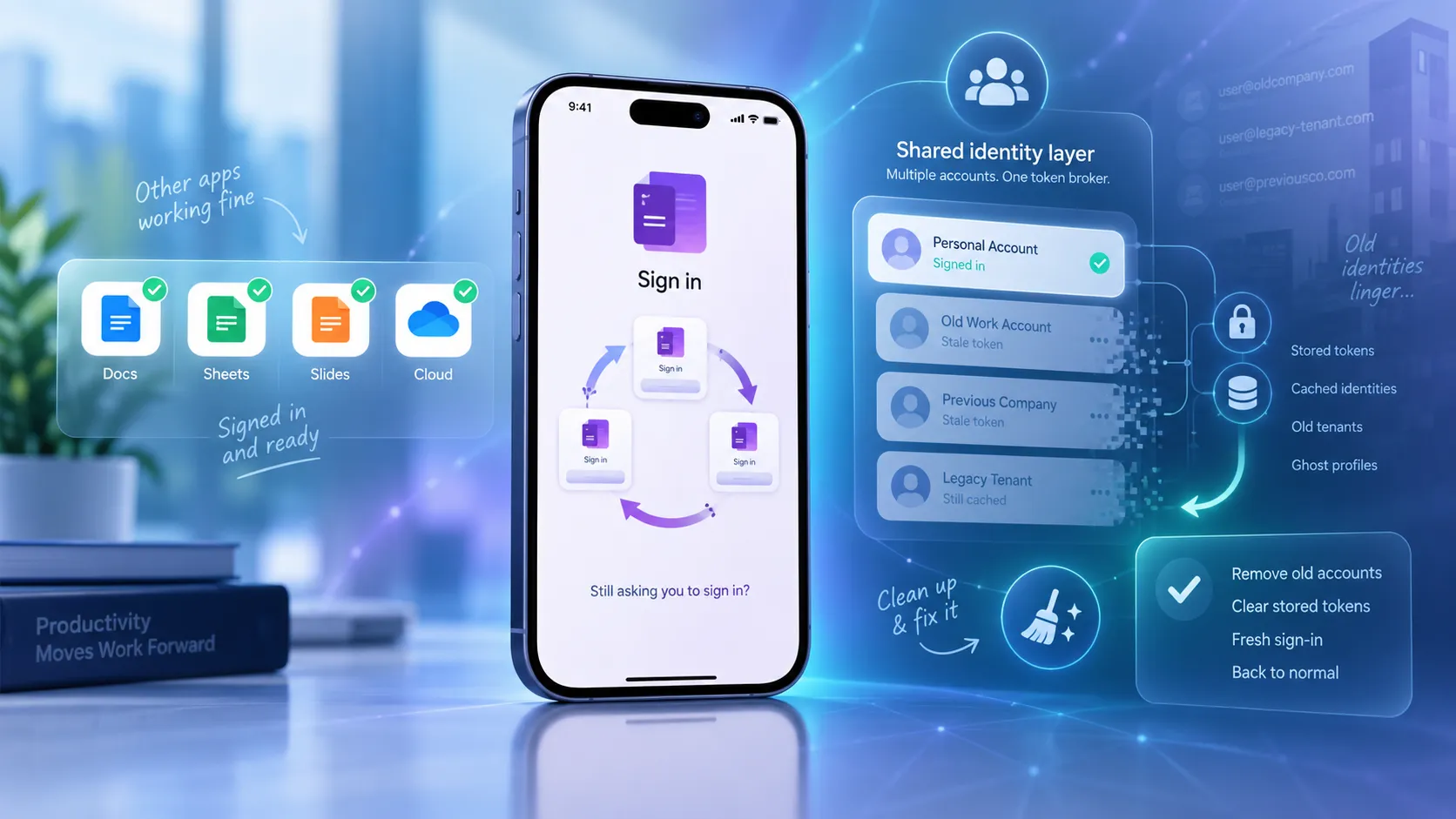
You sign into Microsoft 365 on your iPhone. Outlook lights up. Teams pulls your chats. You tap OneNote, and it asks you to sign in. Fine. You sign in. It asks you to sign in again.
Something is off.
The loop that shouldn’t be happening
If you searched something like why does Microsoft 365 keep asking me to log in, and you landed here specifically with OneNote on an iPhone, this is probably your exact flavor of the problem. Every other Microsoft app on your phone is behaving. Outlook is quiet. Teams is quiet. OneDrive is quiet. OneNote alone keeps kicking you back to the sign-in screen like it has never met you before.
The frustrating part is that single sign-on is supposed to make this a solved problem. You authenticate once, the other apps inherit the state, and life goes on. That is the whole premise. So when one app breaks the pattern, the instinct is to blame the app. Reinstall OneNote. Reboot the phone. Rage-tap the sign-in button. None of it sticks.
The pattern I see most often is that this shows up right after a transition. A new job. A tenant migration. A change of email address. Somebody who used to be an @oldcompany.com and is now an @newcompany.com. The loop tends to arrive with the change, which is a hint about where to look.
So what is OneNote actually looking at when it decides you are not signed in?
What iOS is quietly remembering about your old account
Here is the part most people miss. On iOS, the Microsoft apps don’t each keep their own private login state the way you might assume. They talk to a shared broker, typically anchored around Microsoft Authenticator and the identity components that ride alongside it. When you sign into Outlook, that broker holds the token. When Teams starts up, it asks the broker, “do we have a valid identity for this user?” and inherits the answer. That is why signing into one Microsoft app usually signs you into the others.
Convenient. Also fragile.
Because the same shared store that hands out fresh tokens can also hold onto stale ones. Old employer accounts. Half-removed tenant records. Authentication artifacts left behind when you switched from one Microsoft 365 identity to another and never fully evicted the first one. Microsoft’s own guidance on the OneNote iPhone loop points squarely at this: stale account information in the shared token storage that iOS uses for Microsoft sign-in (Microsoft Q&A).
OneNote checks the shared store, finds something it can’t reconcile (an identity that doesn’t match, a token that doesn’t validate, a record that points at a tenant it isn’t supposed to be in anymore), and does the safe thing. It refuses to trust the state and asks you to sign in fresh. Except the fresh sign-in writes into the same messy store, and the mismatch is still there, so it asks again.
It isn’t really a OneNote bug. It’s a mismatch between what OneNote expects to find and what the shared identity layer is actually handing it.
Clearing the stale account and breaking the loop
Once you see it that way, the fix stops being about OneNote and starts being about the shared store. In my experience, working the following in order tends to break the cycle:
- Sign out of OneNote completely. Not just swipe-close it. Open the app, go into settings, sign out of the account. If the sign-out button is unreachable because it keeps kicking you to the login prompt, that’s fine, move on.
- Open Microsoft Authenticator and prune it. Remove any work or school accounts you no longer use. Old employers especially. If you see an account tied to a tenant you left behind, that’s the one most likely poisoning the shared store.
- Check iOS Settings for leftover configuration profiles. Settings, General, VPN & Device Management. If a previous employer’s MDM profile is still installed, remove it. Those profiles can carry identity hints that survive everything else you try.
- Delete OneNote, then reinstall it. This clears the app’s local cache of the stale identity. Do it in this order, after the Authenticator cleanup, not before.
- Sign back into Microsoft 365 fresh (Outlook is usually the cleanest place to do it), then open OneNote and let it inherit the newly-written token.
The reason “just reinstall OneNote” on its own tends to fail: the shared identity broker survives the reinstall. You delete the app, you put the app back, and it walks right back over to the same shared store and reads the same stale record. You have to clean the store first, then reintroduce the app.
If you’re doing this on a device that’s managed by your employer’s MDM, loop in your IT team before you start yanking profiles. Some of that configuration is load-bearing for things you actually want to keep working, like corporate email or Conditional Access enrollment.
What this tells us about mobile single sign-on
Zoom out for a second. The reason this loop exists at all is that mobile SSO is a shared-state system. Multiple apps read and write to the same identity surface, and shared state is exactly where weird bugs live. Whether we’re talking about caches, session tokens, or DNS, the moment two things depend on the same piece of memory, you inherit every stale entry either of them ever wrote.
The convenience of one login working across every Microsoft app on your phone is the same mechanism that makes an old employer’s ghost sticky months after you left.
For anyone doing IT for small businesses, this is worth internalizing. When somebody joins, when somebody leaves, when a tenant migrates, when an email address changes, the cleanup checklist is not just “reset the password and disable the old account in the admin center.” It’s also the shared identity artifacts on every device that ever authenticated. Authenticator app entries. Profiles. Cached tokens. The stuff that “just works” until identities change over time, at which point it stops just working in ways that are hard to diagnose without knowing where to look.
I’m a little skeptical, generally, of any authentication story that sells itself as invisible. Invisible is great right up until something goes wrong, and then invisible is exactly what makes it hard to fix. The OneNote loop is a small, annoying instance of a much bigger idea: our devices remember more about who we used to be than we usually think about.
Maybe the useful question isn’t “why does OneNote keep asking me to sign in.” Maybe it’s “what else on this phone is still convinced I work somewhere I don’t?”